DOCUHEX ·
Free PDF and Image Tools Without Sign-Up
DOCUHEX provides free PDF and image tools without asking you to create an account or pay a processing fee. You can merge, split, rotate, edit, compress and convert documents, then download the result. Selected document and image files are processed in your browser; opening the site and loading some engines, fonts or models still requires an internet connection. URL to PDF must retrieve a web page and is not an offline task.
The important question is not simply whether a tool is free. It is whether the output does the job: the right pages, readable small print, usable text and the image format you actually need.
Which tool matches your task?
| What you need | DOCUHEX tool | Check before using the result |
|---|---|---|
| Combine documents | Merge PDF | File and page order |
| Create separate files | Split PDF | Split points and excluded pages |
| Keep or remove a selection | Delete & Extract Pages | Whether you selected pages to keep or delete |
| Reduce a document’s file size | Compress PDF | Readability and actual output size |
| Get editable text | PDF to Word | Whether the original has selectable text |
| Recognize a scan | OCR PDF | Language, names, dates and numbers |
| Prepare a product cutout | Remove Background | Edges and transparent output format |
Merge, split and tidy pages before sharing
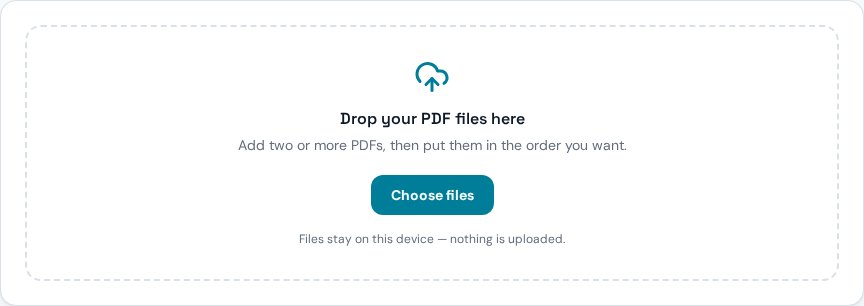
Merging combines documents; splitting creates separate documents from existing pages. Extracting keeps a selected set in a new PDF, while deleting removes unwanted pages. These tasks do not automatically run OCR or reduce the file size.
For a six-page report, mark a split after page 3 to produce two sections: pages 1–3 and 4–6. Choose the every-page option if you need six separate PDFs instead. Review thumbnails after any reordering, rotation or exclusion, then open the downloaded parts. Splitting existing pages is not the same as cutting one oversized page into smaller sheets.
When merging an application pack, put the cover letter first, the form second and supporting documents last. Exclude duplicate attachments in the preview. Use Rotate PDF for sideways or crooked pages and Edit PDF for available visual editing actions. Adding text or covering an area should not be assumed to securely redact hidden information.
Compress PDF: smaller is useful only if it remains readable
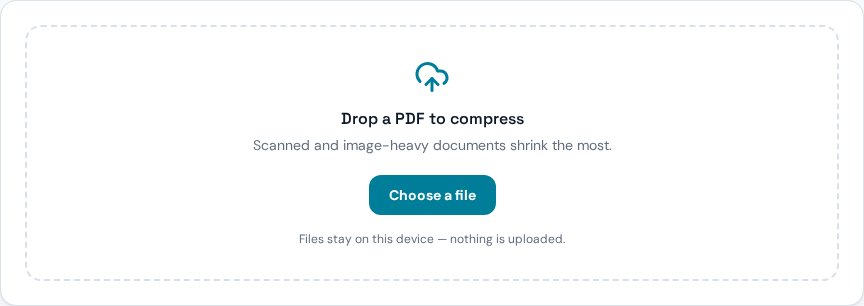
DOCUHEX compression re-renders pages as images at every level, including Low. The result no longer has the original selectable text. Keep the source document, check small print and signatures, and use OCR afterward if searchable text is needed.
If a form accepts files up to 2 MB, start with Low and compare the actual output size. Try Medium or Strong only when necessary. There is no guarantee that every PDF can reach 2 MB, 1 MB or 100 KB while staying readable. An already optimized or text-only document may become larger. Keep the original when it is the better result. See the compression guide for the trade-off rather than assuming lossless compression.
PDF to Word or OCR: first identify the source
Try selecting a sentence in your PDF. Selectable text usually means direct PDF-to-Word conversion is appropriate. A scanned page is an image and needs optical character recognition, or OCR, to turn visible letters into reusable text.
DOCUHEX’s OCR language choices include Arabic. Select the document language, compare recognized text with the page and correct important names, dates and numbers in the editable preview. Mixed Arabic and English lines need particular attention to reading order. A searchable PDF adds recognized text; TXT and DOCX suit text reuse and editing. Neither recognition nor Word layout reconstruction guarantees perfect results.
After conversion, inspect tables, headers, columns and line breaks in a compatible word processor. For scans, use OCR before direct Word conversion, or use the OCR text export as appropriate. The OCR guide and PDF-to-Word guide explain the separate stages.
Free image tools: dimensions, file size and transparency
Resize Image changes pixel dimensions. Crop Image changes framing. Compress Image helps adjust file size through available export settings. These are related tasks, not interchangeable ones.
For a shop photo, remove the background and inspect hair, glass, shadows and edges similar in color to the background. Choose PNG or WebP to retain transparency. JPG does not preserve transparent pixels; use a solid background when exporting JPG. The background-removal model runs locally but may need downloading on first use. Speed and cutout quality depend on the device and picture.
For documents, use JPG to PDF for JPEG photos and PNG to PDF for screenshots or graphics. PDF to JPG and PDF to PNG render pages as images; image output is not editable document text.
Other conversions and password protection
DOCUHEX also has Word to PDF, Excel to PDF, PowerPoint to PDF, PDF to Excel and PDF to PowerPoint. Review reconstructed layouts and tables. A PDF stores displayed numbers, not the original spreadsheet formulas.
Protect PDF adds password protection. It does not remove sensitive information from pages. Keep the password safely and share it separately from the document when appropriate. URL to PDF retrieves web content; pages behind logins or complex dynamic pages may not capture as expected. The submitted URL and page assets are retrieved through a server-side relay; use public URLs without private access tokens.
Local processing does not mean no internet activity
Your selected files for local tools are processed on the device, rather than uploaded to a conversion server. The website can still make requests for code, language data, models, analytics and consent-dependent advertising. See the privacy policy.
Offline use depends on loading the required page and resources first; it is not a promise that every tool works from a fresh offline session. Large files are limited by device memory and may need smaller batches. Closing a tab does not delete files you already downloaded.
How to compare free tools fairly
iLovePDF’s Free plan describes limited document processing. Adobe has free online tools, with account conditions that vary by action: its PDF editor requires sign-in, while its converter describes downloading or signing in for additional options. Check the exact tool rather than assuming one rule covers an entire provider. For DOCUHEX, choose by local processing, available controls and output suitability—not an unsupported claim that it is always better.
Frequently asked questions
Do I need an account or payment to use these tools? No account or processing payment is required for the DOCUHEX tools described here. That does not mean the site collects no analytics or shows no advertising.
Can I turn an image into text here? The OCR workspace takes PDF input. Convert a JPG or PNG scan into PDF first, then run OCR and review the text. Do not assume a separate direct image-to-text tool is available.
Does visual PDF editing securely remove private text? Do not assume that covering text removes it from the underlying file. Use a properly verified redaction workflow for sensitive information.
What should I check before sharing? Page order, missing content, small text, important numbers, output format and file size. Keep the original.
Start with the DOCUHEX tool directory, choose the task you need and review the downloaded result before sending it.