DOCUHEX ·
How to OCR a PDF in Your Browser (Free, No Upload)
A scanned PDF is usually a set of page images, so its words cannot be selected or searched. OCR—optical character recognition—finds characters in those images and turns them into usable text.
To OCR a PDF in your browser, open DOCUHEX OCR PDF, choose the recognition language, process the pages, correct the editable preview and export a searchable PDF, Word document or text file.
OCR a PDF now
How to do it step by step
- Open OCR PDF and choose a scanned PDF.
- Select the document language, including Arabic where needed.
- Run OCR and review each page’s editable recognized text.
- Correct important names or numbers, then export searchable PDF, DOCX or TXT.
Why this browser workflow is useful
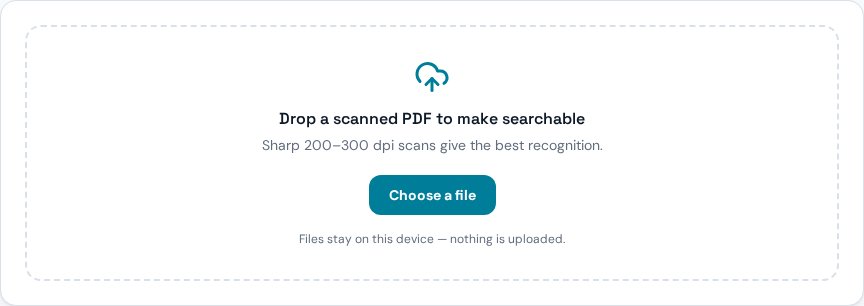
- Document processing stays on your device.
- An OCR language model may download the first time you use a language.
- The editable preview lets you correct recognition before export.
- Working with a long scan? Try Split PDF to recognize one chapter at a time, then merge PDF files back into one searchable document.
What to know before you start
- Accuracy depends on scan clarity, resolution, language and page layout.
- Handwriting and decorative fonts are harder than clean printed text.
- Very large documents use more device memory and take longer.
Frequently asked questions
Is DOCUHEX free and does it require an account?
Yes. The tool is free and requires no account, email address or payment.
Is my file uploaded for processing?
No. The file is processed locally in your browser on your device.
What are the practical limits?
Accuracy depends on scan clarity, resolution, language and page layout.