DOCUHEX ·
PDF to Word Offline in Your Browser: Free, No Upload
PDF fixes a page’s appearance; Word is designed for editing. DOCUHEX extracts text, layout and images and builds an editable DOCX directly in your browser.
To convert PDF to Word without uploading it, choose the PDF in DOCUHEX, run the local conversion, then download the DOCX. After the page and required code have loaded, the document conversion itself does not require a file upload.
Convert PDF to Word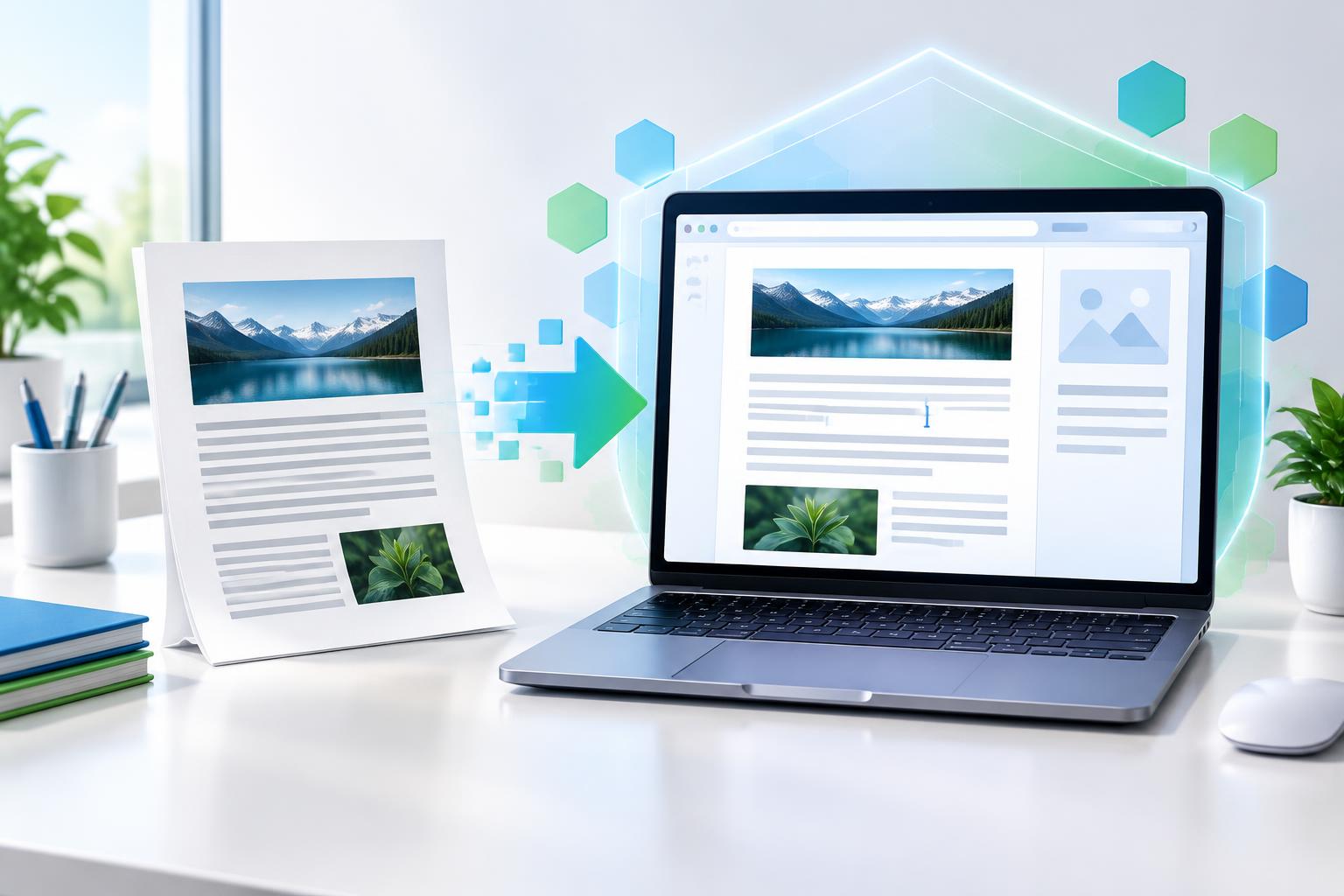
How to do it step by step
- Open PDF to Word and choose your PDF.
- Check the detected page count and start conversion.
- Wait while text, images and layout are extracted locally.
- Download the DOCX and review it in Word, LibreOffice or another compatible editor.
Why this browser workflow is useful
- Best results come from digital PDFs with clear text and simple columns.
- The exported DOCX contains editable text and extracted images.
- Use OCR PDF first when the source is a scan made only of images.
- Working on one chapter? Try Split PDF to convert only the pages you need, or merge PDF files before a single conversion.
What to know before you start
- Complex tables, unusual fonts and overlapping elements may need manual adjustment.
- Offline use requires the page and its code to have loaded previously; browser cache behavior varies.
- Large or image-heavy documents need more memory and time.
Frequently asked questions
Is DOCUHEX free and does it require an account?
Yes. The tool is free and requires no account, email address or payment.
Is my file uploaded for processing?
No. The file is processed locally in your browser on your device.
What are the practical limits?
Complex tables, unusual fonts and overlapping elements may need manual adjustment.