
DOCUHEX ·
How to Convert PDF to Word: Free Step-by-Step Guide
You received a PDF—a contract, a report, a form—and you need to change its text. PDF is built to look identical everywhere, not to be edited, so the practical answer is converting it to a Word document you can open and modify.
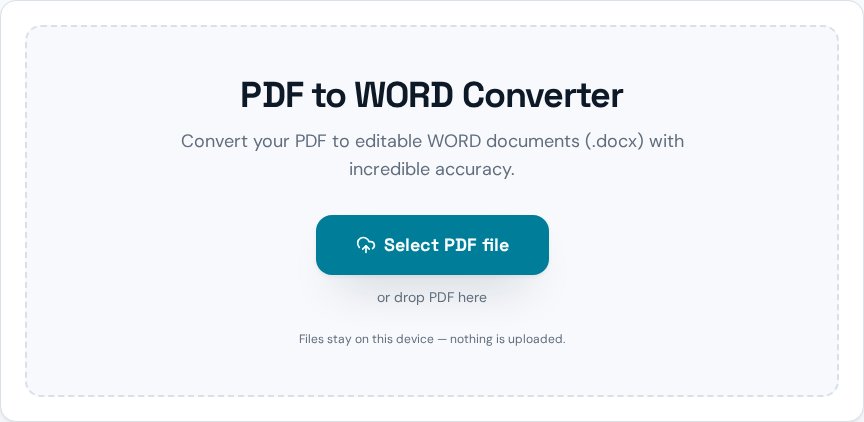
To convert a PDF to Word, open DOCUHEX PDF to Word, select your PDF, start the conversion and download the DOCX. The file is processed in your browser on your device, so the document is not uploaded to a conversion server and no account is needed.
Convert PDF to Word now
How to do it step by step
- Open the PDF to Word tool on DOCUHEX.
- Select the PDF you want to convert from your device.
- Check the detected page count and start the conversion.
- Wait while the text, images and layout are extracted locally.
- Download the DOCX and open it in Word, LibreOffice or Google Docs to edit it.
Why this browser workflow is useful
- Digital PDFs with selectable text convert most accurately; scans should be run through OCR first.
- The resulting DOCX keeps the text, images and basic layout so you can edit immediately.
- Because conversion happens in your browser, confidential contracts and reports stay on your device.
- Long report? Try Split PDF to convert only the pages you need, then merge PDF files the results back together.
What to know before you start
- Complex tables, multi-column layouts and unusual fonts may need small manual fixes after conversion.
- A scanned PDF is a set of images—use OCR PDF first to recognize its text.
- Very large documents use more device memory and take longer to convert.
Frequently asked questions
Is DOCUHEX free and does it require an account?
Yes. The tool is free and requires no account, email address or payment.
Is my file uploaded for processing?
No. The file is processed locally in your browser on your device.
What are the practical limits?
Complex tables, multi-column layouts and unusual fonts may need small manual fixes after conversion.