DOCUHEX ·
Compress PDF Without Uploading: Free Browser Guide
Large scanned or image-heavy PDFs can be difficult to email or submit. DOCUHEX reduces their size inside your browser, so the document does not need to go to a processing server.
To compress a PDF without uploading it, select the file in DOCUHEX, choose Low, Medium or Strong compression, compare the new size and clarity, then download the result.
Compress a PDF now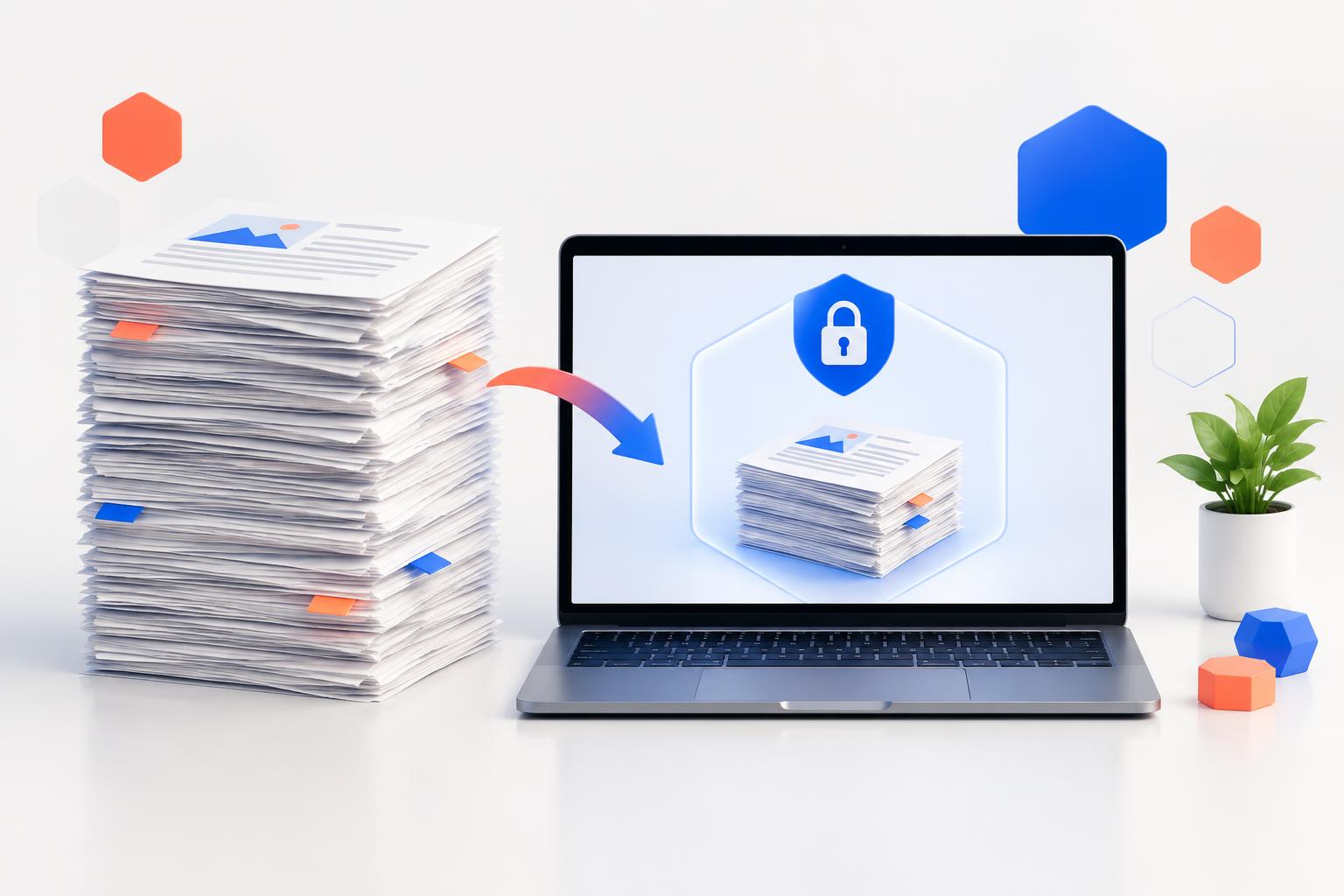
How to do it step by step
- Open Compress PDF and select your document.
- Start with Low compression for the clearest output.
- Try Medium or Strong only if the file is still too large.
- Inspect small text and signatures, then download the result.
Why this browser workflow is useful
- Low suits print-sensitive documents; Medium balances size and clarity; Strong prioritizes the smallest output.
- Scanned and photo-heavy documents usually shrink more than text-only files.
- No account, email, watermark or payment is required.
- Combining related files first? Merge PDF files before compressing, or try Split PDF so every part stays under an upload limit.
What to know before you start
- This tool re-renders pages as images, so output text is no longer selectable; run OCR afterwards if needed.
- Some quality loss is possible, especially with Strong compression.
- An already optimized PDF may not become smaller.
Frequently asked questions
Is DOCUHEX free and does it require an account?
Yes. The tool is free and requires no account, email address or payment.
Is my file uploaded for processing?
No. The file is processed locally in your browser on your device.
What are the practical limits?
This tool re-renders pages as images, so output text is no longer selectable; run OCR afterwards if needed.